Login with Facebook
To enable Facebook Auth for your project, you need to set up a Facebook OAuth application and add the application credentials to your Supabase Dashboard.
Overview#
Setting up Facebook logins for your application consists of 3 parts:
- Create and configure a Facebook Application on the Facebook Developers Site
- Add your Facebook keys to your Supabase Project
- Add the login code to your Supabase JS Client App
Access your Facebook Developer account#
- Go to developers.facebook.com.
- Click on
Log Inat the top right to log in.
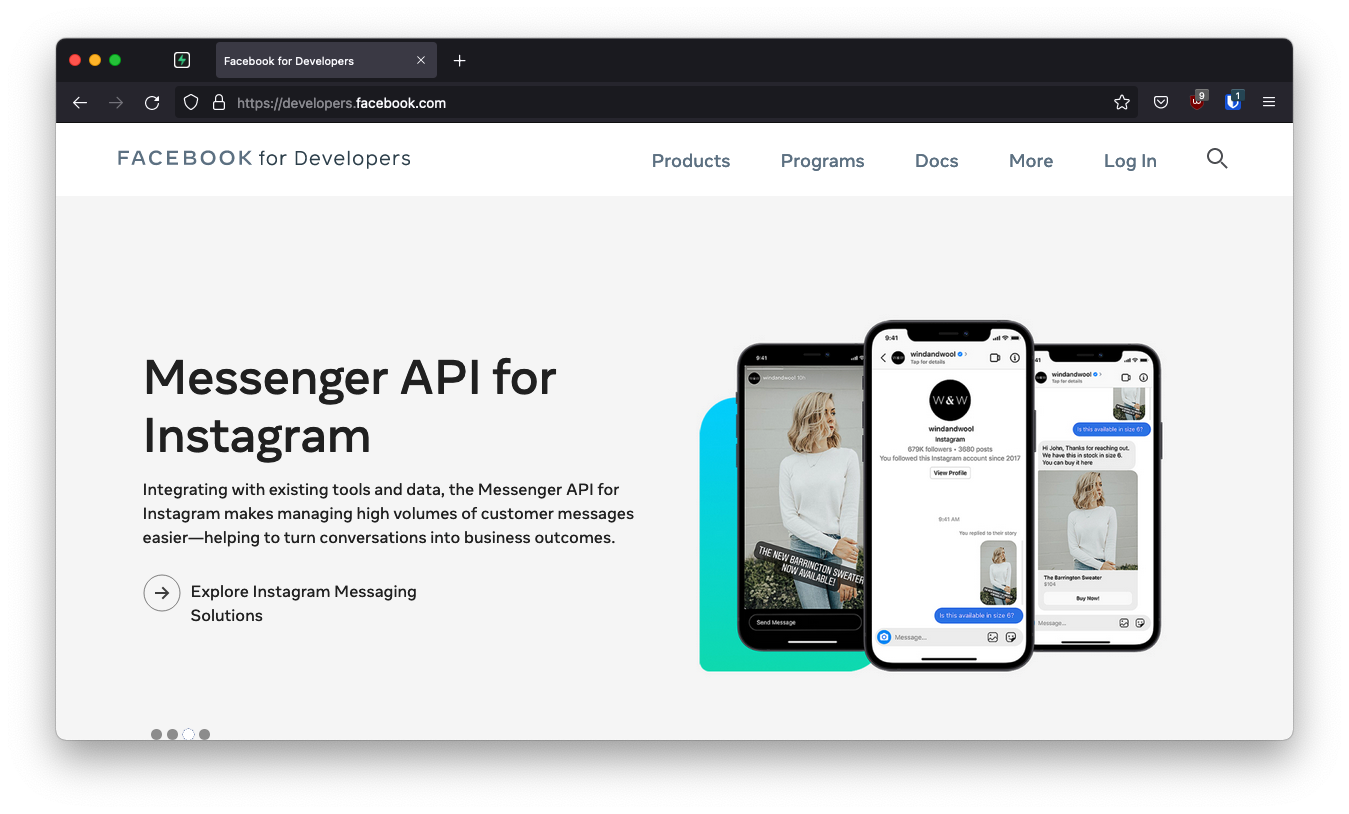
Create a Facebook App#
- Click on
My Appsat the top right. - Click
Create Appnear the top right. - Select your app type and click
Continue. - Fill in your app information, then click
Create App. - This should bring you to the screen:
Add Products to Your App. (Alternatively you can click onAdd Productin the left sidebar to get to this screen.)
Find your callback URI#
The next step requires a callback URI, which looks like this:
https://<project-ref>.supabase.co/auth/v1/callback
- Go to your Supabase Project Dashboard.
- Click on the
Settingsicon at the bottom of the left sidebar. - Click on
APIin the list. - Under Config / URL you'll find your API URL, you can click
Copyto copy it to the clipboard. - Now just add
/auth/v1/callbackto the end of that to get your fullOAuth Redirect URI.
Set up FaceBook Login for your Facebook App#
From the Add Products to your App screen:
- Click
SetupunderFacebook Login - Skip the Quickstart screen, instead, in the left sidebar, click
SettingsunderFacebook Login - Enter your callback URI under
Valid OAuth Redirect URIson theFacebook Login Settingspage - Enter this in the
Valid OAuth Redirect URIsbox - Click
Save Changesat the bottom right
Be aware that you have to set the right access levels on your Facebook App to enable 3rd party applications to read the email address.
From the App Review -> Permissions and Features screen:
- Click the button
Request Advanced Accesson the right side ofpublic_profileandemail
You can read more about access levels here
Copy your Facebook App ID and Secret#
- Click
Settings / Basicin the left sidebar - Copy your App ID from the top of the
Basic Settingspage - Under
App SecretclickShowthen copy your secret - Make sure all required fields are completed on this screen.
Enter your Facebook App ID and Secret into your Supabase Project#
- Go to your Supabase Project Dashboard
- In the left sidebar, click the
Authenticationicon (near the top) - Click
Settingsfrom the list to go to theAuthentication Settingspage - Enter the final (hosted) URL of your app under
Site URL(this is important) - Under
External OAuth ProvidersturnFacebook Enabledto ON - Enter your
Facebook client IDandFacebook secretsaved in the previous step - Click
Save
Add login code to your client app#
When your user signs in, call signInWithOAuth() with facebook as the provider:
1async function signInWithFacebook() {
2  const { data, error } = await supabase.auth.signInWithOAuth({
3    provider: 'facebook',
4  })
5}
When your user signs out, call signOut() to remove them from the browser session and any objects from localStorage:
1async function signout() {
2  const { error } = await supabase.auth.signOut()
3}